PartyCaption Review: Customize Your partypoker Table to Fit Your Playstyle
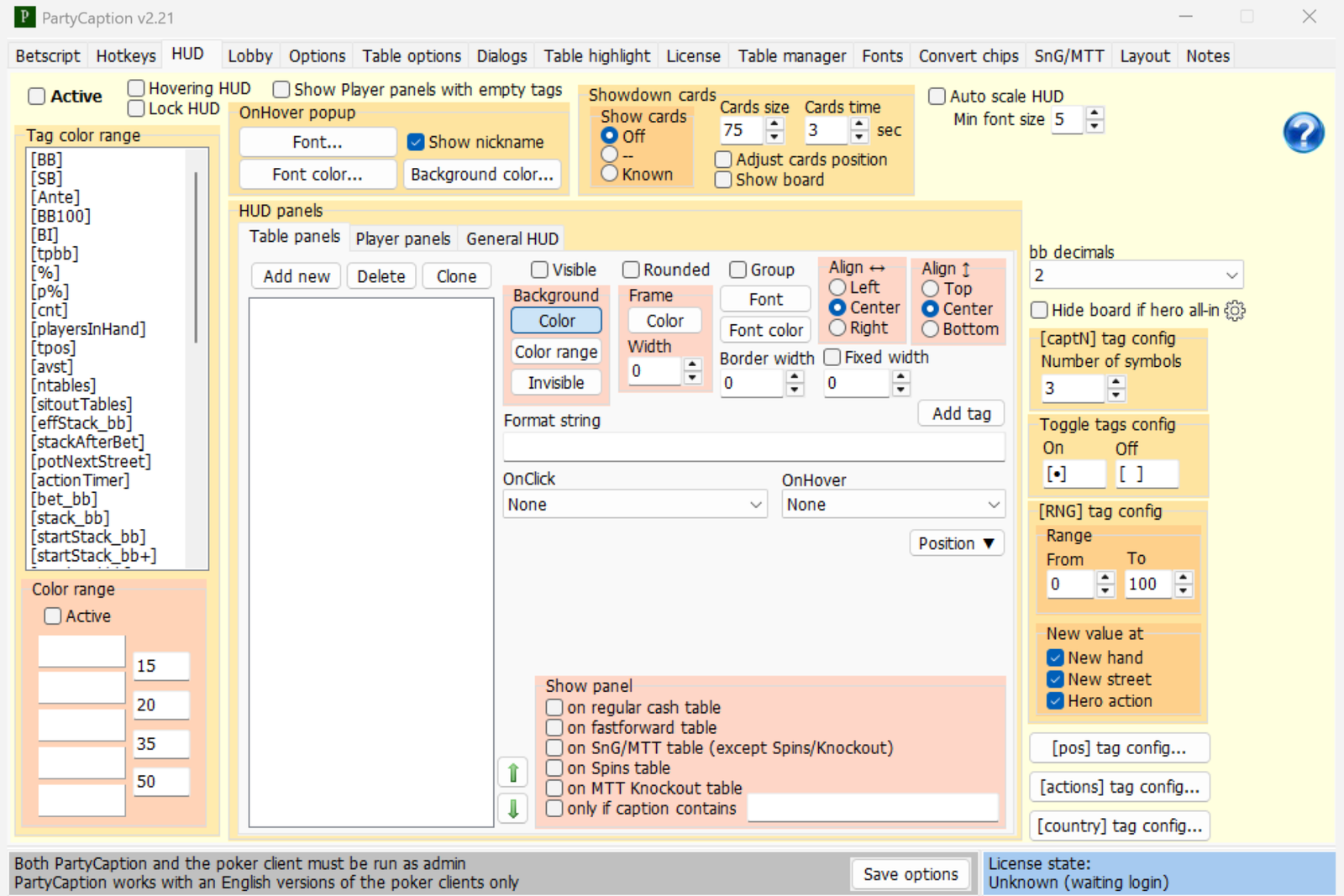
PartyCaption is a utility for the partypoker client and other poker rooms on the bwin.party network. It does not replace the poker room client and is not a standalone poker table. Instead, it runs alongside the client, connects to open tables, and changes how they look and operate. Stacks can be displayed in big blinds instead of dollars, custom information panels can be added to the table, any action can be assigned to a hotkey, unnecessary interface elements can be hidden, and common pop-up windows can be closed automatically.
The software addresses three main tasks. The first is eliminating mental calculations: how many blinds an opponent has, what pot odds you are getting on a call, and what the effective stack will be after a bet. The second is reducing mouse movement, which is especially useful when playing multiple tables. The third is customizing the interface: removing ads, changing fonts, arranging windows, and highlighting tables that require attention.
The software has been available since 2012 and is included on the list of tools officially permitted by partypoker.
How the Software Is Structured
The main PartyCaption window is a collection of settings tabs, while the software itself works as an overlay on top of the poker client’s tables. It is helpful to think of it as several independent layers, each of which can be enabled or disabled.
The first layer redraws elements that are already present on the table. This includes fonts for player names, stacks, and bets, converting amounts into big blinds, hiding unnecessary elements, and shortening the window title.
The second layer is the HUD. These are the software’s own panels, displayed over the table to show information that is not available in the client, such as pot odds, the effective stack, SPR, positions, and opponents’ action history. It is important to distinguish between two concepts here. HUD stands for heads-up display and is a general term for information panels displayed over a poker table. A tracker’s HUD shows accumulated opponent statistics from a hand database. PartyCaption does not have a hand database, so its HUD only displays information calculated from the current hand and table.
The third layer covers controls: hotkeys, using the mouse wheel to set bet sizes, custom betting buttons on the table, automatic handling of dialog boxes, table arrangement, and tournament registration.
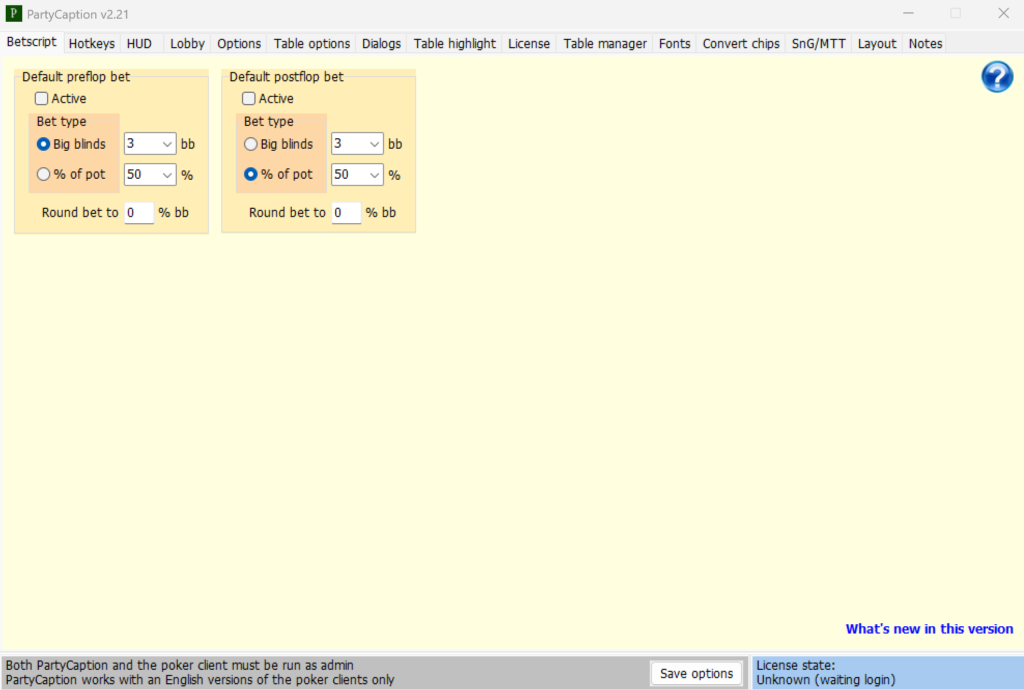
An important technical detail is that the HUD panels must be enabled for more than just displaying information. Table highlighting, color-coded notes assigned via hotkeys, and the custom bet box also use the HUD system, so the Active checkbox on the HUD tab must be selected for these features to work.
Amounts in Big Blinds
The feature that made the software well known is its ability to convert all table values into big blinds. The big blind (BB) is a mandatory bet commonly used to measure stack and bet sizes because it has the same meaning at every stake: 200 BB is a deep stack at both NL10 and NL500.
The poker room client displays amounts as money or tournament chips, forcing players to do the division mentally. PartyCaption rewrites these values directly on the table: player stacks, bets, the pot, and button labels are all displayed in blinds. You can also configure the precision by choosing how many decimal places to display or using a mode in which the number of decimal places depends on the size of the value.
In practice, this changes how you read the table. Instead of seeing “the opponent has $23.40 at NL25,” you see “94 BB,” allowing you to choose an opening size or decide whether to shove without any intermediate calculations. The effect is even more noticeable in tournaments, where the blinds increase every few minutes.
Information Panels on the Table
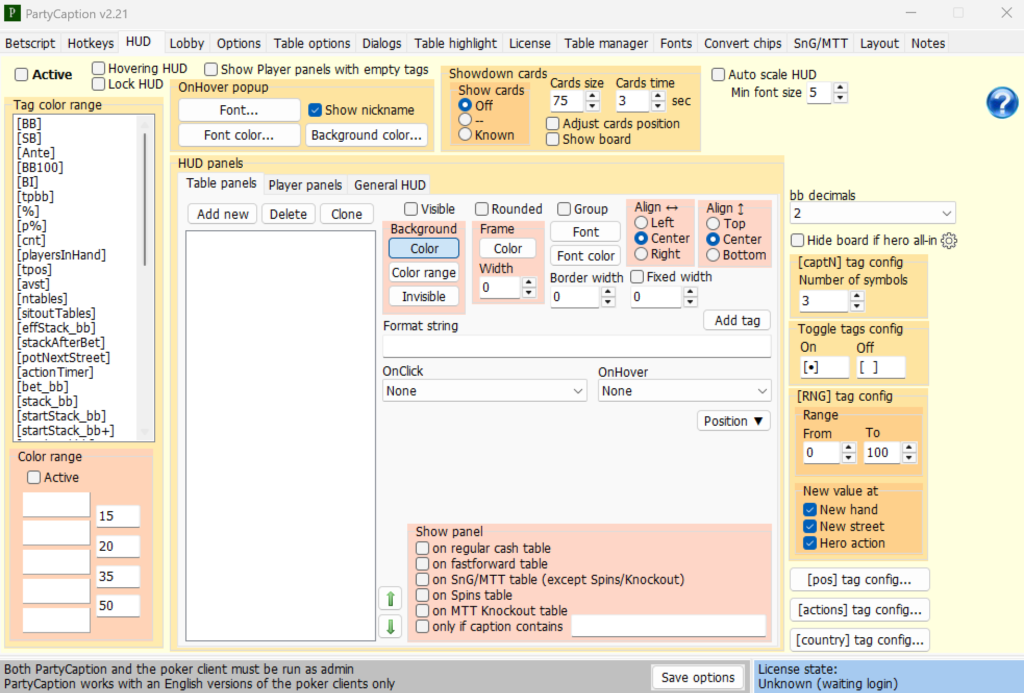
The PartyCaption HUD consists of two types of panels. Table panels display general information such as pot odds, the number of players, pot size, and the blind timer. Player panels are linked to specific seats and duplicated for every opponent, showing details such as position, stack in blinds, and action history.
A panel’s content is defined by a string containing regular text and tags in square brackets. A tag acts as a placeholder that is replaced on the table by a calculated value. For example, the string Odds: [%] will display “Odds: 17%” on the table, where 17% represents the pot odds for a call in the current situation. Tags can be selected from a list with descriptions, so you do not have to enter them manually.
A wide range of values is available. Calculated values include pot odds for a call as a percentage or ratio, shove odds, effective stack, SPR and effective SPR (stack-to-pot ratio), and the required defense frequency against a bet of a given size. Hand information includes player positions, each opponent’s action history with bet sizes, identification of the preflop aggressor, and the number of players still in the hand. Tournament data includes the average stack, the player’s position, blind timer, paid places, guarantee, late registration level, and knockout bounty. A separate group of values is retrieved from the tournament lobby. The software can open the lobby in the background and refresh its data on a timer.
In addition to predefined tags, formulas are available. A value can be calculated using an expression inside curly brackets, with any numerical tags inserted into it. A typical example is {[TL_ITM]-[TL_heroPos]}, which shows how many players remain before the money. Values can also be color-coded by range. For example, the table stake can appear red at NL10 and below, yellow at NL50, and green at NL100 and above.
There is also a general HUD, which is a separate window not attached to any table. It can display session information such as how long you have been playing, how many hands and tournaments you have played, how many tables are open, and how many currently require action.
Beginners should explore this section one panel at a time rather than trying to learn everything at once. Pot odds and stack size in blinds are sensible starting points: both directly affect decisions, and getting used to them takes only one session.
Betting Buttons and Default Sizes
PartyCaption offers three complementary ways to set bet sizes.
The first is custom betting buttons. Any HUD panel can become a button: you assign a “bet by formula” action to it and define the size in blinds, as a percentage of the pot, or as a multiple of an opponent’s bet. You can create as many buttons as you like and place them anywhere on the table. Control tags allow you to display one set of buttons preflop, another postflop, and only when it is your turn to act. The client’s standard buttons can be hidden.
The second method is betting hotkeys. They support the same three sizing types, with separate settings available: preflop sizes can be calculated in blinds and sizes facing a raise as multiples, while postflop sizes can be calculated as a percentage of the pot and sizes facing a bet as multiples. The result can either be entered into the bet box or submitted immediately with the action.
The third method is default bet sizes that the software enters automatically. On partypoker.com, the poker room permits only two such values: one for preflop and one for postflop. They can be defined in blinds or as a percentage of the pot—for example, 3 BB preflop for every situation, from an open raise to a 3-bet. There are no filters for positions or situations because the poker room prohibits them, so additional flexibility must come from buttons and hotkeys. A more detailed version of this setting is available in the clients for some regulated markets.
Hotkeys and Mouse Controls
A table action can be assigned to either a keyboard shortcut or a mouse button. In addition to standard buttons, you can use side buttons, clicks while holding another button, double-clicks, and right- or middle-button clicks in a specific quarter of the table. This means that one physical button can perform four different actions depending on the cursor’s position.
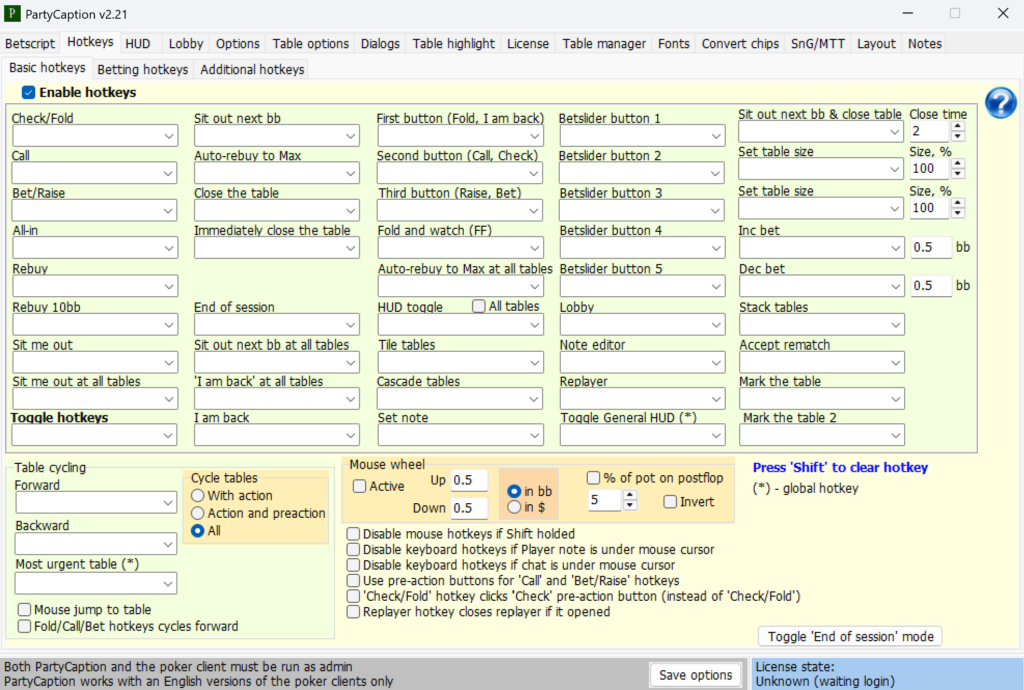
The action list covers almost everything that would otherwise be done manually in the client: check-fold, call, bet-raise, all-in, rebuying in cash games and tournaments, topping up by ten blinds, sitting out at the current table or all tables, selecting “I’m back” at all tables, closing a table with optional automatic confirmation, opening the lobby and replayer, resizing a table, increasing or decreasing a bet by a specified number of blinds, and marking a table for use in subsequent rules.
Switching between tables is configured separately. You can cycle only through tables where action is required or through all tables. There are also options to jump to the most urgent table and move the mouse cursor to the activated table.
The mouse wheel can be configured as a bet-size control. The step can be defined as a fraction of a blind, a monetary amount, or a percentage of the pot postflop, and the direction can be reversed if preferred.
There is also protection against accidental inputs. Hotkeys can be disabled while the cursor is over the chat or notes window, and all mouse shortcuts can be temporarily disabled by holding Shift.
Opponent Notes
The software supports two types of notes. Color labels can be assigned to a player in two clicks: pressing a hotkey opens a small window with colored buttons next to the player’s name, and the selected label immediately becomes visible at the table and in the lobby. Colors are commonly assigned to opponent types such as aggressive, passive, recreational player, and strong regular.
Text notes are written in a separate editor and can be displayed directly on the table or appear when you hover over a player panel. Individual lines of a note are available as separate tags, so you can, for example, always display the first line next to the player’s name while keeping the remaining lines in a pop-up window.
Both systems serve the same purpose. Unlike the client’s standard notes, PartyCaption labels can be made large and colorful enough to see in your peripheral vision during fast-paced play, rather than requiring a separate click to find them.
Table Appearance and Highlighting
Fonts can be configured separately for player names, stacks, bets, buttons, and the bet box, with options for typeface, size, and color. This is not merely cosmetic: when playing twelve reduced-size tables, the readability of amounts matters more than visual design.
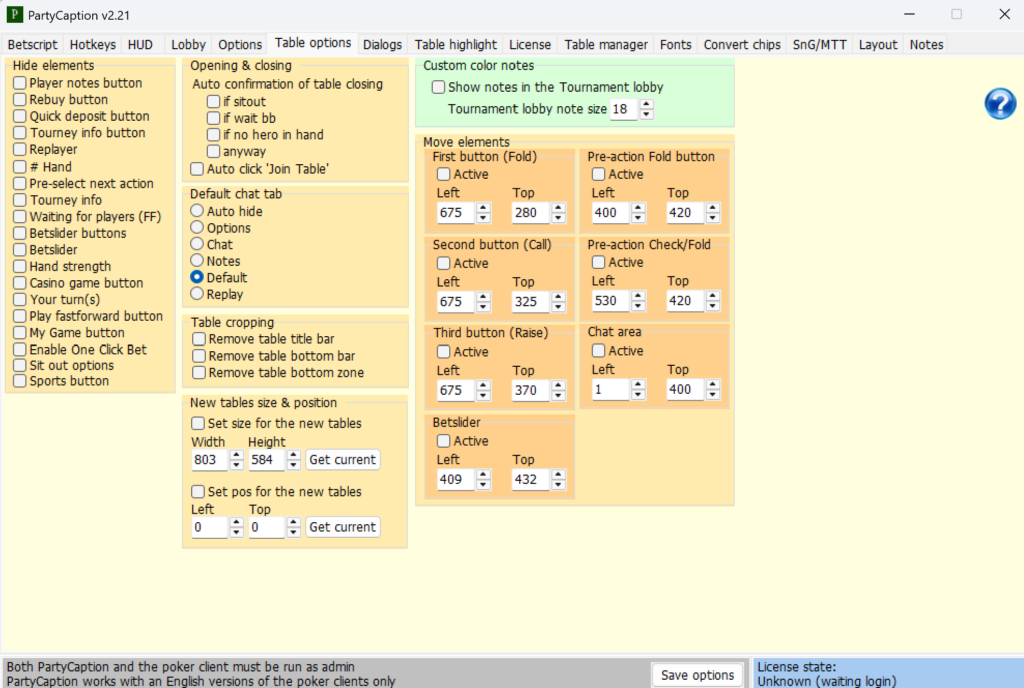
Unnecessary interface elements can be hidden, including advertising banners, extra buttons, the window title, borders, and specific messages. Shortening the title bar frees up screen space, and the table can then be closed using a custom panel button placed in the corner.
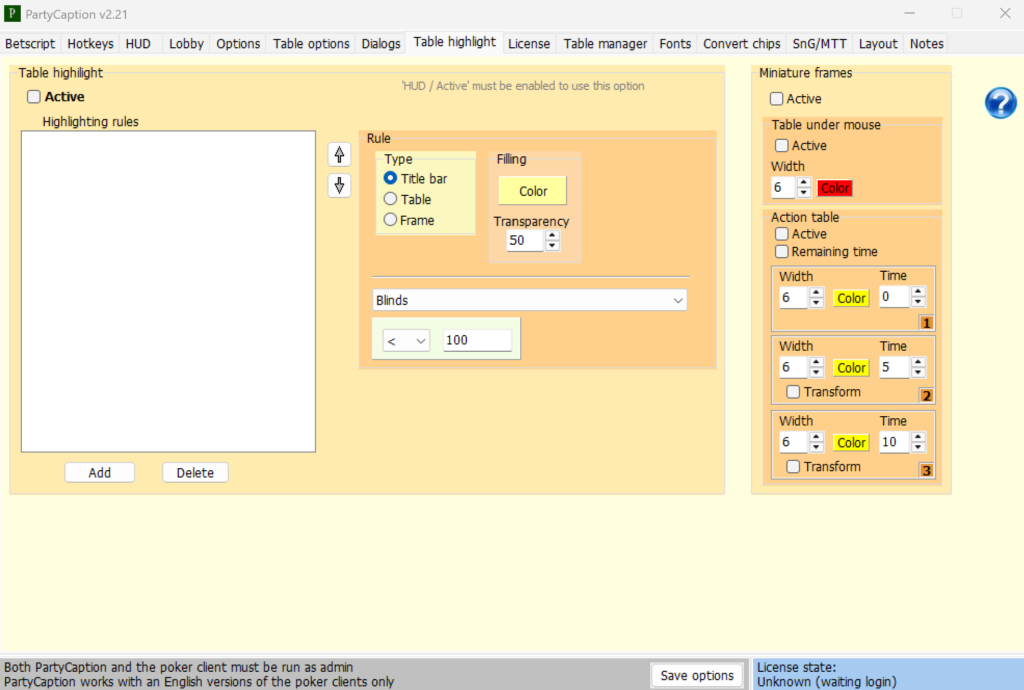
Table highlighting works through rules. A rule consists of a condition and a visual style: a border with a specified color and thickness or a fill with adjustable transparency. Conditions can be based on the blind level, number of players at the table or on the postflop street, stack in blinds, pot size, tournament buy-in, part of the table title, or situational criteria. These include whether the cursor is over the table, action is required, the hand has been folded, the table has been manually marked, or little time remains to act. Rules are arranged in a prioritized list, and the highest applicable rule is used for each table.
A separate border can be configured for the decision timer. Its color and thickness change as the timer runs down, and the transition can be made gradual. During multi-tabling, this is the most noticeable signal: you can immediately see which table requires attention without reading any timers.
Table Layouts and Multi-Tabling
The table manager stores window layout schemes, including the number of tables and the position of each one. When a new table opens or an old one closes, the software automatically rearranges the windows according to the scheme, so there is no need to drag them around with the mouse in the middle of a session. Stack-and-thumbnail layouts are also available, where the active table is shown at a larger size and the others as smaller windows with their own highlighting borders.
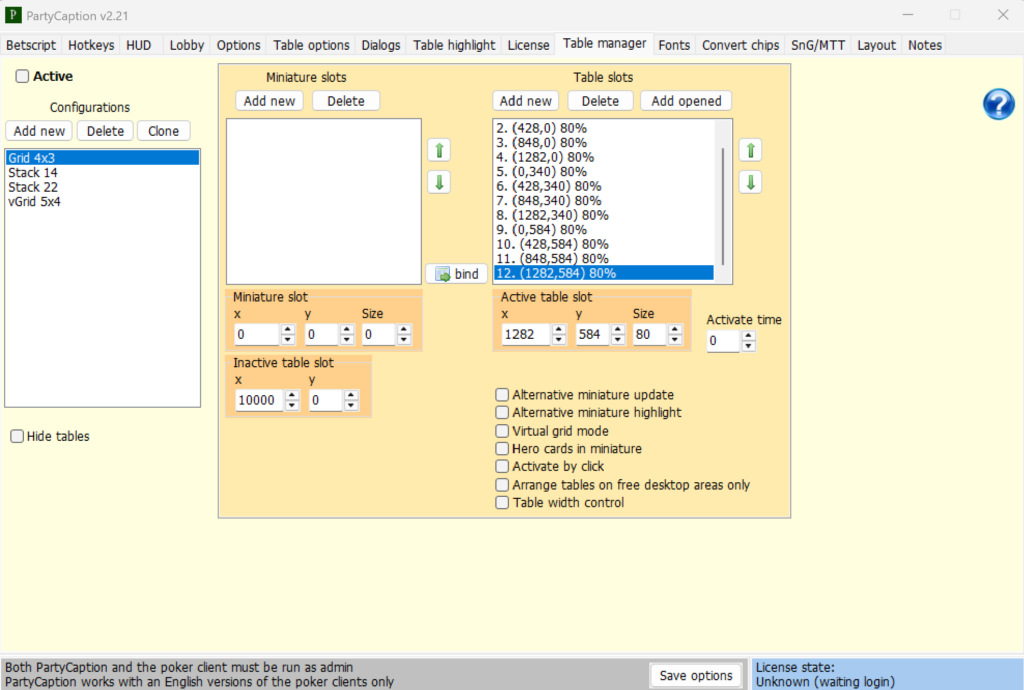
This section also includes bringing a table to the front when action is required, moving the cursor to the active table, and placing the lobby and replayer in predefined areas of the screen.
Tournaments and Automatic Registration
The tournament features are divided into three groups of settings.
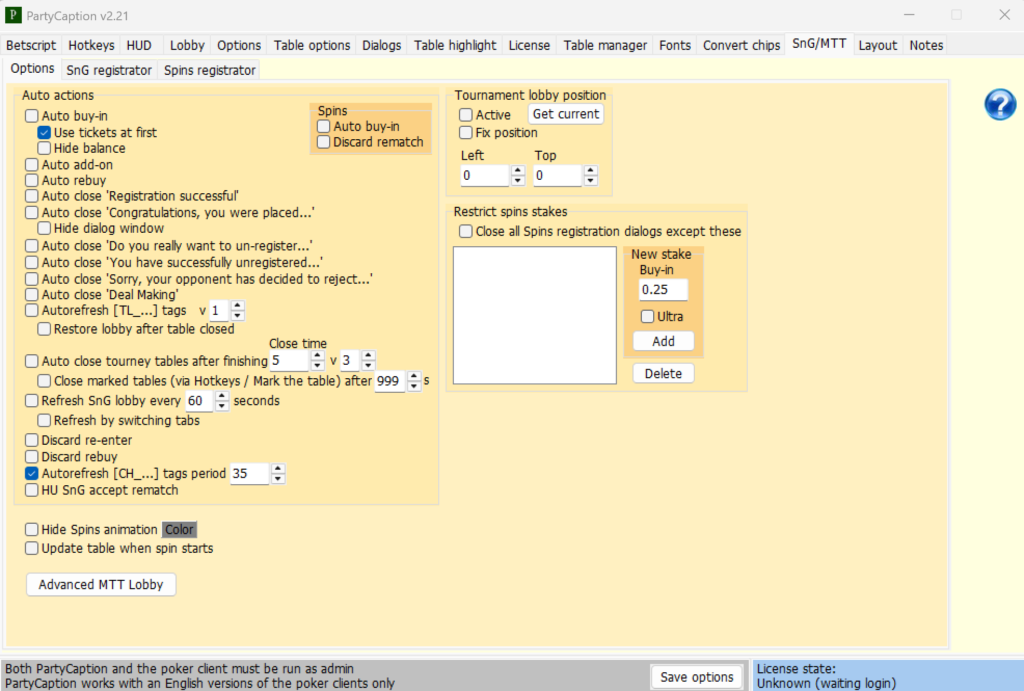
Dialog box handling. The software can automatically confirm a buy-in, selecting a ticket first when one is available, enable rebuys and add-ons, and close windows concerning successful registration, elimination, canceled registration, an opponent declining a rematch, or a final-table deal. The table for a tournament from which you have been eliminated closes automatically after a specified number of seconds.
SnG registrar. This module automatically registers you for Sit & Go tournaments according to specified conditions. A Sit & Go is a tournament that starts when the required number of players has registered rather than at a scheduled time. For each tournament type, you can set a limit on simultaneous registrations, an overall limit for tournaments of that type, the range of open seats at which registration should occur, and its priority relative to other types. You can also specify how many active tournaments the registrar should maintain, the tournament limit for the session, and the session duration in minutes, after which the registrar switches off automatically. A button for unregistering from all tournaments ends the entire session at once.
Spins registrar. This works as a sequence: different Spins types are added to a list, and the software opens them in order before cycling back to the beginning. This lets you set a ratio—for example, launching every third game in a faster format.
The expanded tournament lobby collects data for all tournaments in a single window with custom columns and allows you to register by double-clicking.
Integration With Hand2Note
PartyCaption does not have its own hand database. It does not store played hand histories, calculate opponents’ VPIP and PFR, or generate reports. Everything shown by its panels is calculated from the current table in real time.
Opponent statistics are provided by a tracker. The settings include an option to send data to Hand2Note. When this option is enabled, the tracker receives information from partypoker tables and displays its own HUD over them.

In practice, this means having two layers of information on the same table: PartyCaption panels showing pot odds, stacks in blinds, and the action history for the current hand, and tracker panels showing accumulated player statistics. The features do not duplicate one another; they complement each other.
Compatibility: Poker Rooms, Formats, and Limitations
The software works with the partypoker client and other clients on the bwin.party network. In addition to the main client, it supports international and regulated-market versions, including bwin and the network’s Spanish, French, Italian, German, Danish, Czech, Swedish, Greek, and Canadian clients, as well as several partner skins and BetMGM clients. The exact list of supported versions changes as poker rooms release updates, so you should confirm that your client is supported before purchasing.
The software does not impose any restrictions on poker variants: it works with No-Limit Hold’em, Omaha, and Short Deck. It supports cash tables, fastforward tables, standard tournaments, Sit & Go tournaments, knockout tournaments, and Spins. Some settings, such as panel visibility, can be configured separately for each table type.
You should also be aware of the limitations. The software is available only for Windows, and the developer does not offer a separate macOS version. The poker client must be set to English, and both the client and PartyCaption must be run as administrator; otherwise, the license code cannot be detected. The available features depend on the poker room’s rules. On partypoker.com, only one default bet size is available for preflop and one for postflop, while certain features have been removed at various times at the poker room’s request. The software does not provide its own opponent statistics, so you will need a tracker for that.
How to Get Started
Getting started with the software involves a few steps.
Installation. Download the installer from the developer’s website and install it as usual. Both PartyCaption and the poker client must be configured to run as administrator, and the client language must be set to English.
First launch. After you log in to the poker client, the software detects your screen name and requests the license status from the server. The License tab displays the current status and license code.
Trial period. The same tab contains the Request for Trial button, which submits a request for one month of full access without stake restrictions. The request is not processed instantly; it usually takes a few hours. You can then update the license status using the refresh button or by restarting the software.
Initial setup. There is no reason to learn everything at once. A sensible minimum for your first session is to enable the conversion of amounts into big blinds, enable the HUD and add one or two panels for pot odds and stacks in blinds, assign hotkeys for check-fold, call, and bet-raise, and enable automatic closing of common dialog boxes. Table layouts, rule-based highlighting, custom betting buttons, and registrars are best added later, one feature at a time.
Settings are stored in a configuration file that can be backed up and restored, so experimenting will not put your working setup at risk.
Pricing
The pricing model is straightforward: a permanent free mode for micro stakes, a one-month trial available on request, and an annual license for all higher stakes. The free mode covers cash games up to and including NL10/PLO10 and tournaments with buy-ins of up to and including $3. The software automatically closes tables above these limits. The license is linked to your screen name, and you can add screen names from other poker rooms on the network, with one screen name permitted for each room.
A detailed description of the plans and prices is available on the product page.
Conclusion
PartyCaption is not a poker advisor or a source of statistics. It is a tool that handles mechanical tasks for the player, including blind calculations, unnecessary clicks, window arrangement, and closing pop-up messages. For beginners, its value lies primarily in two areas: displaying amounts in big blinds and pot odds directly on the table helps you learn to think in the right terms, while hotkeys save attention that is better spent on decisions.
The software is best learned gradually. It offers a large number of settings, and trying to enable everything at once results in a cluttered table that is harder to play on than the standard layout. A sensible approach is to begin with blind conversion and a couple of panels, then add hotkeys. Once those become familiar, you can move on to highlighting, the table manager, and automatic tournament registration.

Featured software

Latest posts
-
 Poker Academy Review: Ranges, Solver, and Trainer in One Browser Window Oct 11, 2026
 -
 SmartHand Review: Opponent Stats Before the First Hand Oct 10, 2026
 -
 888Caption Review: A Tool for Fast-Paced Multi-Tabling Oct 9, 2026
 -
 Preflop ICM Solving in GTO Wizard: ICM-Aware Preflop Solutions in Seconds Oct 8, 2026
 -
 Octopi Poker Review: Tournament GTO With Pro Hand Reviews Oct 7, 2026
All the poker software you need, gathered in one place. Exclusive discounts, bonuses, latest news and updates.
Join now