WinamaxCaption Review: Hotkeys, HUD, and Table Highlighting for Multi-Tabling on Winamax
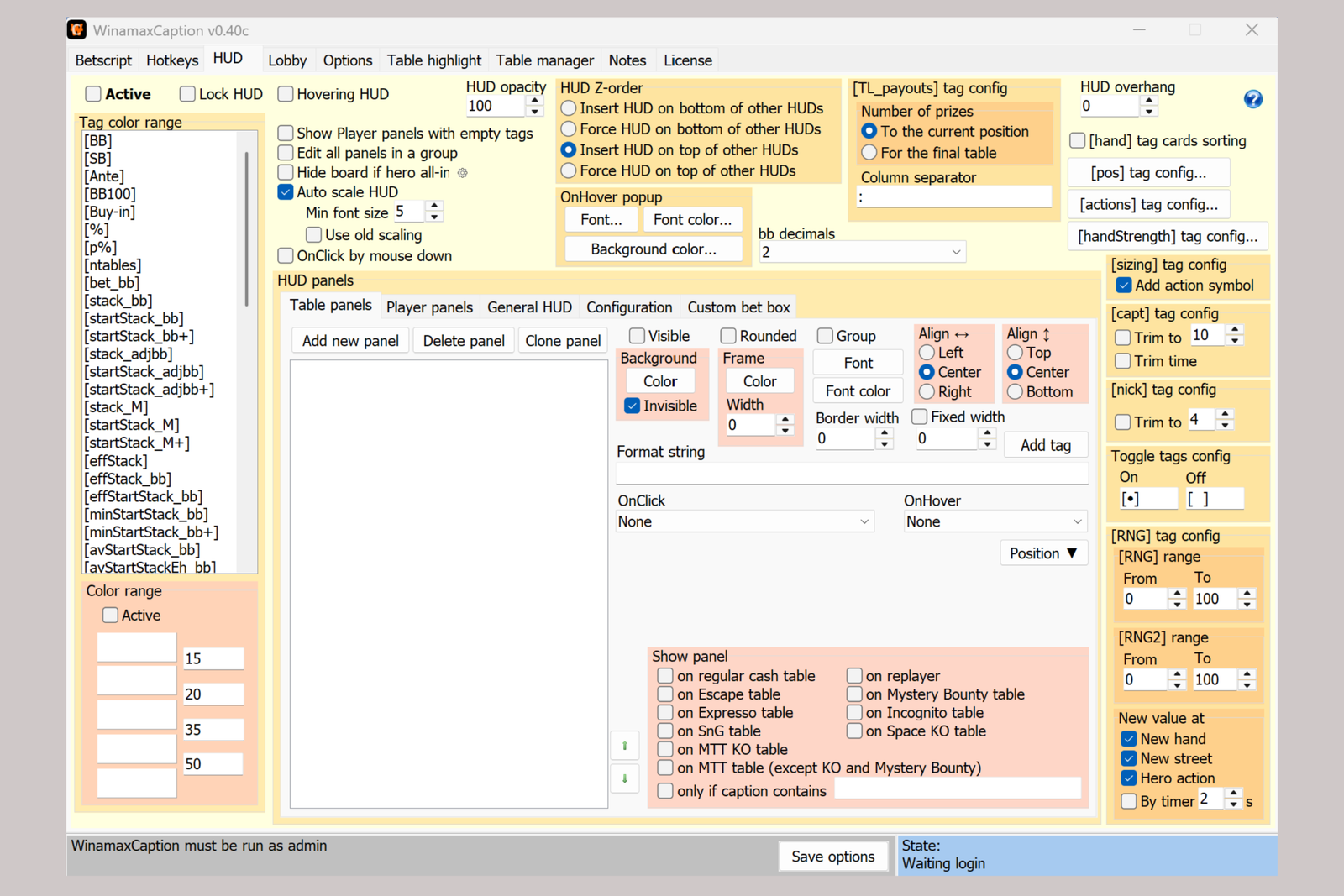
WinamaxCaption is a utility for Winamax poker players that handles the routine aspects of multi-tabling: clicking buttons, entering bet sizes, switching between tables, and tracking where action is required. It does not play on the player’s behalf or advise them how to play a hand—it eliminates unnecessary mouse and keyboard actions so that the player can focus solely on making decisions.
The software is primarily useful for players who play several tables at once: the more tables you have open, the more time routine actions usually take and the easier it is to miss your turn. WinamaxCaption reduces this workload with hotkeys, predefined bet sizes, and clear visual highlighting of what is happening at each table.
How the Software Integrates With Your Game
Once launched, the software connects to the open Winamax client and recognizes the screen name of the player logged into the account. It then monitors the status of every open table: whose turn it is, how many seconds remain to act, and the size of the pot and stack. Based on this data, the software does three things simultaneously: it displays an information panel (HUD) over the table, highlights the table with a border or fill according to specified conditions, and waits for a hotkey to be pressed to perform an action or enter the required amount in the bet field.
If action is required at several tables at once, the software decides which table to bring to the foreground first. By default, it selects the table with the least time remaining to act or, if configured separately, the one where the most time has elapsed since the action began.
Hotkeys: Control the Table With One Button
Hotkeys can be assigned to keyboard keys—including combinations with Ctrl, Alt, or Shift—or mouse buttons, and they cover two types of tasks.
In-game actions: check or fold (the software automatically determines which of the two actions is available), call, bet or raise, and sit out on the big blind.
Table and interface management: show or hide the HUD, open the replayer, minimize or close a table, arrange tables in a cascade or tiled layout, reopen a table of the same format with one click, switch to the table with the least time remaining to act, and use a master hotkey to enable or disable all other hotkeys at once.
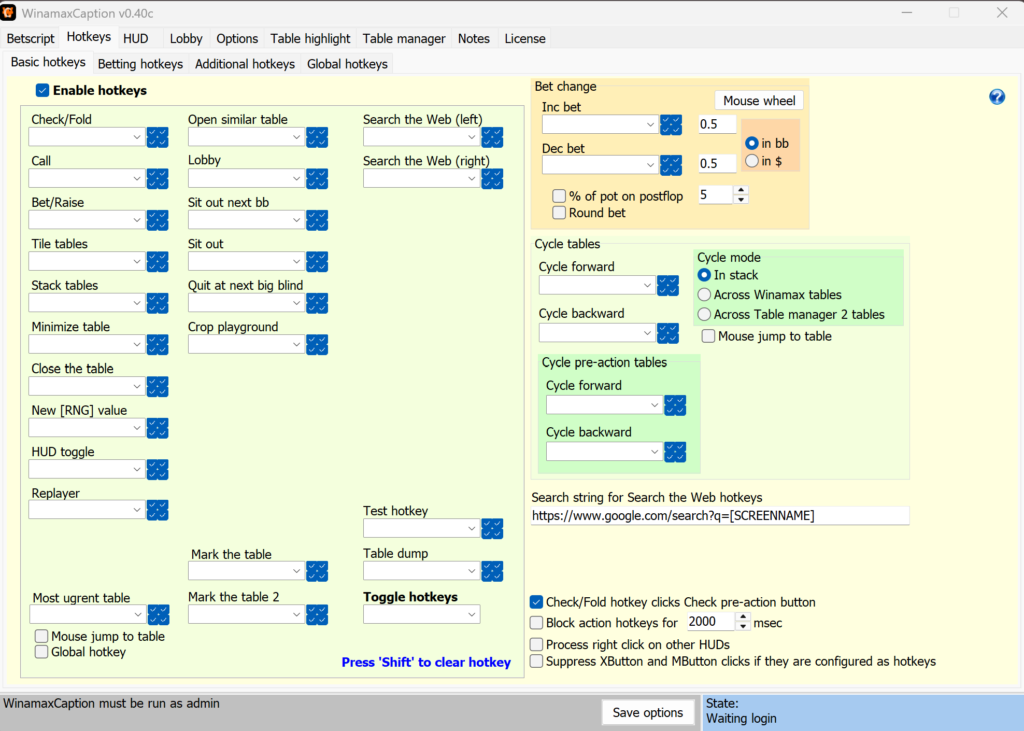
You can also restrict a hotkey to a specific area of the table so that the same mouse button is not accidentally triggered where it is not needed.
BetScript: Automatic Bet Sizing
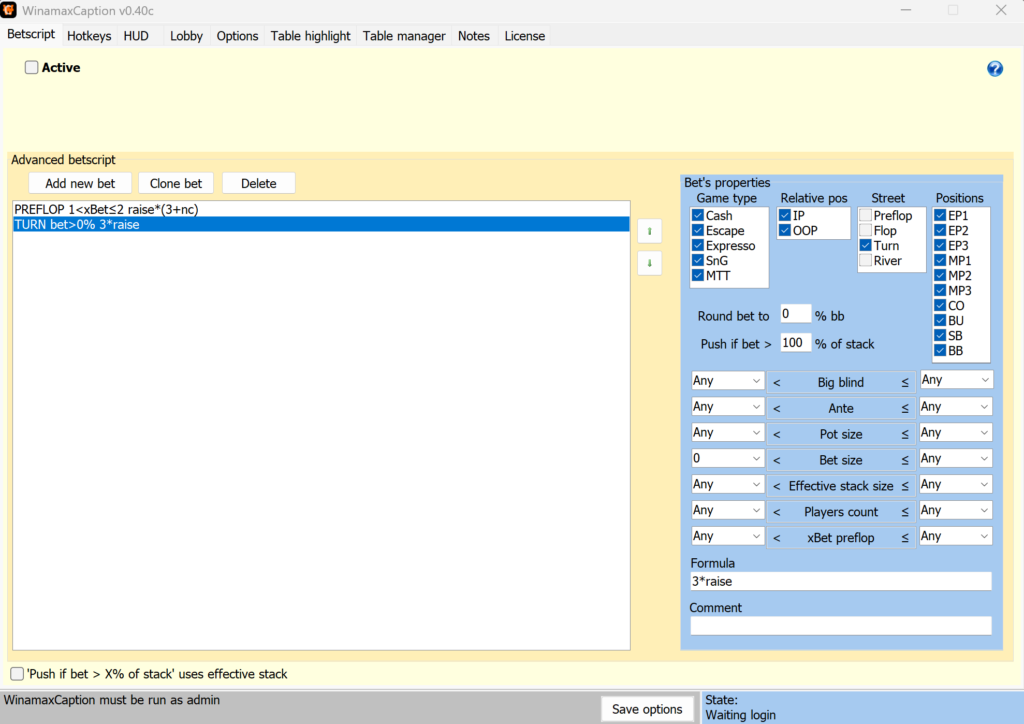
BetScript solves a specific multi-tabling problem: having to enter the bet size again at every table. Instead, the software automatically enters the required value in the bet field, so the player only needs to click “Bet/Raise”—or “Check/Fold” if no bet is required.
Bet sizes are calculated using formulas that apply to different situations: one for preflop open-raises, with an additional amount for each limper; another for 3-bets or squeezes, using a multiplier based on the opponent’s bet and an additional amount for each cold caller; and separate formulas for postflop bets and raises, calculated as a percentage of the pot or the opponent’s bet.
Each formula is linked to a set of filters: table position, stack size, number of players, big blind size, pot size, street (preflop or postflop), and the number of previous raises in the hand. The software checks the filters in order from top to bottom and applies the first matching formula. This lets you maintain separate settings for situations such as early position (UTG or EP) and the button (BTN) without switching between them manually.
HUD: In-Game Information Directly on the Table
The WinamaxCaption HUD does not display opponent statistics. Instead, it shows current information about the table and hand. The data is displayed in customizable panels of two types: general table panels showing the blind level, number of active players, and stack-to-pot ratio (SPR), and individual player panels showing position, stack, and action history for the hand.
Panels can display pot odds for calling and shoving, effective stacks, tournament structure and payout information, session duration, and the number of hands played. The format of each panel is assembled from tags and regular text, such as “Call: [%] Push: [p%],” and its display can be limited to specific situations—for example, only when it is the hero’s turn, only preflop, or only postflop.
Numeric values can be color-coded according to threshold ranges. For example, you can set boundaries at 20–40–60–80 and assign a different color to each interval, making important deviations visible at a glance without having to study the numbers. Clicking a panel can trigger an action, such as copying an opponent’s screen name to the clipboard for checking through an external service like SharkScope, entering a predefined bet, or closing the table. Hovering over a panel can display a tooltip with tournament payouts or the opponent’s bet sizes.
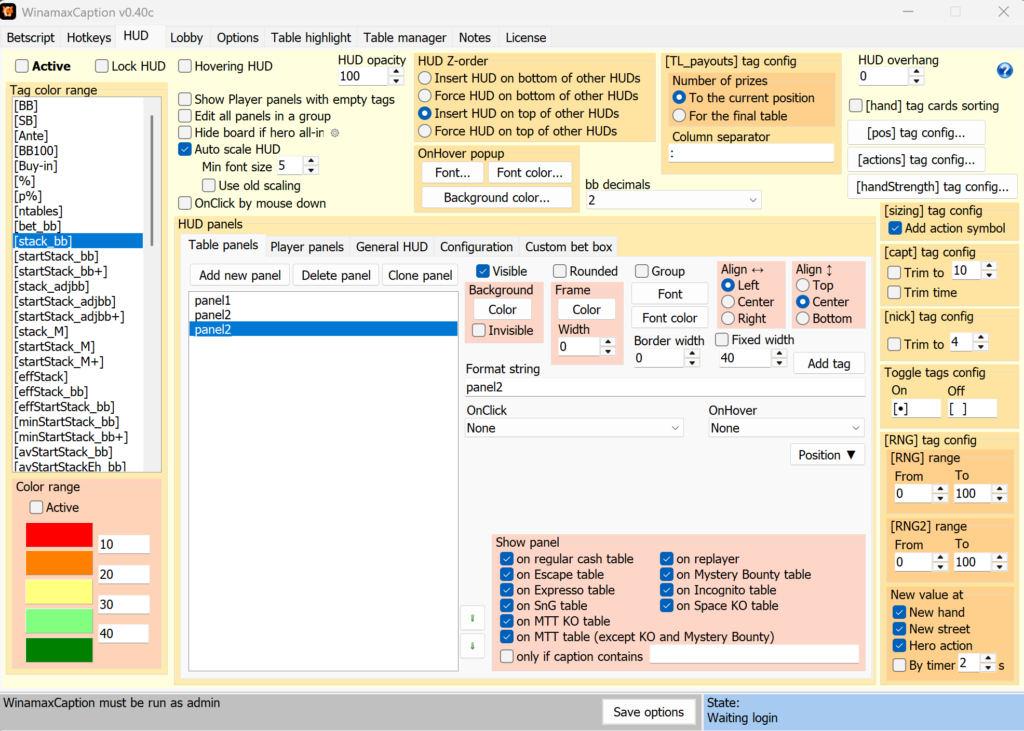
Table Highlighting and Lobby Management
Highlighting helps you quickly assess the status of multiple open tables without reading the HUD on each one. Borders and fills can be enabled independently and configured for specific situations, including the blind level, pot or stack size, number of players at the table, tournament stage—particularly reaching the money—whether the player is sitting out or waiting for the big blind, time bank activation or a low number of seconds remaining to act, and tables that have been marked manually or are under the mouse cursor. Border thickness and fill transparency can be configured separately, allowing highlights to be either subtle or highly visible.
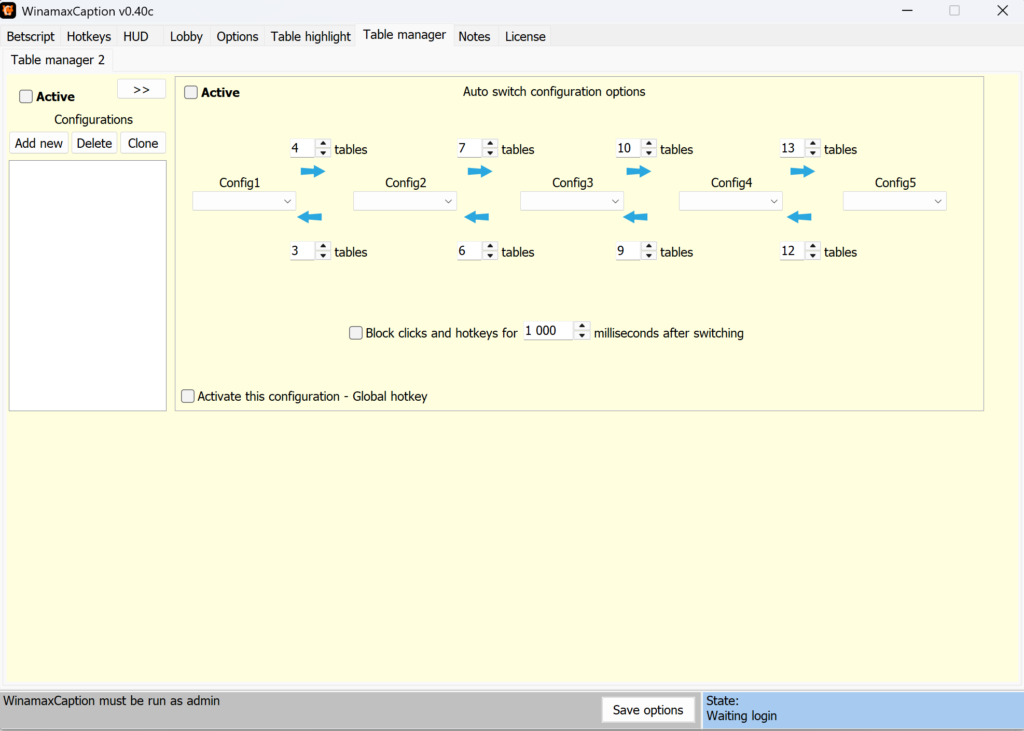
A separate settings section controls the Winamax lobby. You can lock the lobby window’s size and position so that it does not move on its own, and crop interface elements such as the title bar, border, and unnecessary areas around the edges, leaving only the required part of the screen visible. This frees up screen space when playing many tables simultaneously.
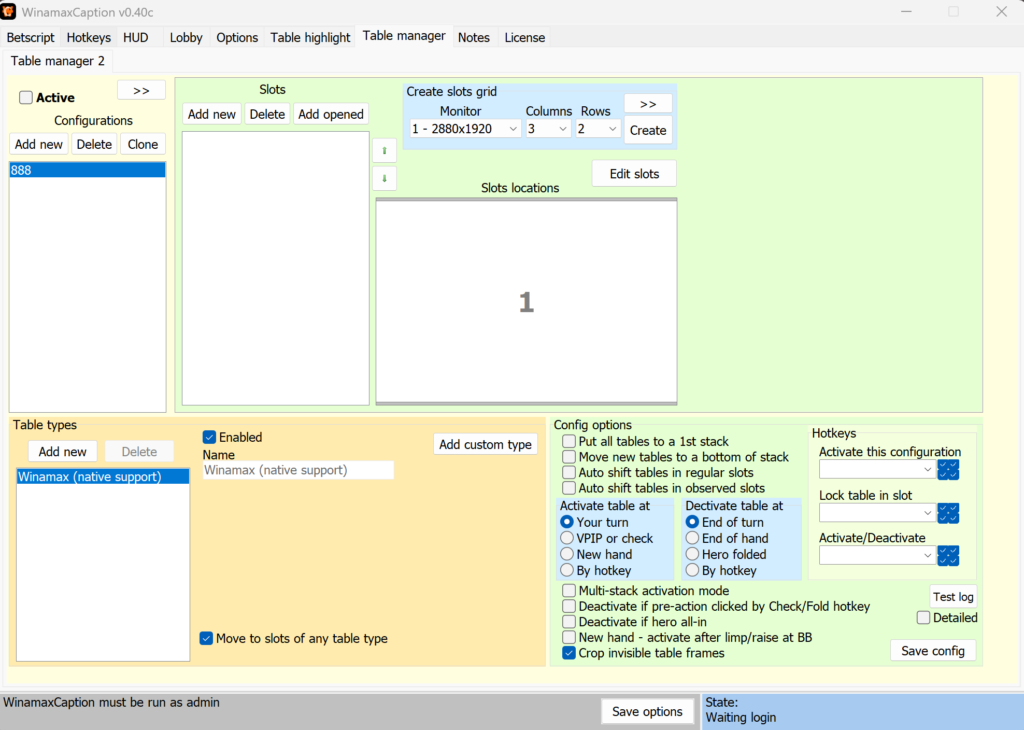
Automatic Table Activation and Player Notes
When action is required at several tables at once, the software places them in a queue and brings each one to the foreground in turn. By default, it starts with the table where the least time remains to act. When the mouse is moved over a table, the same table activation feature can move the cursor to a specified point. When the table moves into the background, it can also simulate activity in the lobby so that the client does not consider the session inactive.
In addition to in-game data, the HUD can display color-coded player labels or notes using a panel border or background. This allows you, for example, to visually identify opponents you recognize from previous hands directly at the table without consulting external databases.
Compatibility: Formats and Poker Rooms
The software works exclusively with the Winamax poker client and does not support other poker rooms. It is designed for cash games and tournaments, including the fast-fold format (Zoom tables) and the lightweight Playground mode in the Stack layout, specifically to keep multi-tabling comfortable even on less powerful computers. The software is available only for Windows and must be run with administrator privileges to work correctly.
The Winamax client also needs to be configured for stable operation: place the hero at the bottom center of the table by selecting “Lower” in the client settings, disable “Insta bet,” and move the action buttons to the bottom of the screen. It is best to open tables only after launching the software; otherwise, issues may occur, particularly at Zoom tables and in Playground mode.
Getting Started
You can get started in just a few steps:
- Download and install the software, then run it with administrator privileges by using the “Compatibility” tab in the file properties.
- Configure the Winamax client according to the software’s requirements: place the hero at the bottom center, disable instant betting, and position the action buttons at the bottom of the screen.
- Configure a basic set of hotkeys—check/fold, call, and bet/raise—and one or two BetScripts for your usual range of bet sizes.
- Enable the HUD with a few key indicators, such as pot odds and SPR, and optionally enable table highlighting for one or two of the most important conditions.
- If necessary, request an unrestricted trial and gradually increase the number of open tables and the complexity of your settings.
Pricing
Without a license, the software can be used indefinitely at NL10 and below and in tournaments with buy-ins of up to €3. This is enough to learn the interface and customize the hotkeys, BetScripts, and HUD. For higher stakes, a one-month trial with no feature restrictions is available, followed by an annual license. A detailed description of the plans and prices is available on the product page.
Conclusion
WinamaxCaption does not replace poker skills or a tracking tool—its purpose is different: to eliminate unnecessary clicks from multi-tabling and provide the table information you need precisely when it is your turn to act. Players new to multi-tabling should learn the software gradually. Start with a couple of basic hotkeys and a simple HUD at one or two tables, then add BetScripts, highlighting, and advanced lobby customization as the number of tables you play simultaneously increases.

Featured software

Latest posts
-
 GGPoker Bans Third-Party Poker Software: Five New Security Measures Oct 18, 2026
 -
 Table Wizard Review: Table Organization and Automated Session Analysis Oct 17, 2026
 -
 PeakGTO Review: A GTO Trainer With an ELO Rating System From Jonathan Little’s Team Oct 16, 2026
 -
 GTOBase Review: Ready-Made GTO Solutions and Hand Analysis Oct 15, 2026
 -
 Simple Postflop Review: A GTO Solver for Heads-Up Pots from Preflop to River Oct 14, 2026
All the poker software you need, gathered in one place. Exclusive discounts, bonuses, latest news and updates.
Join now