Table Wizard Review: Table Organization and Automated Session Analysis
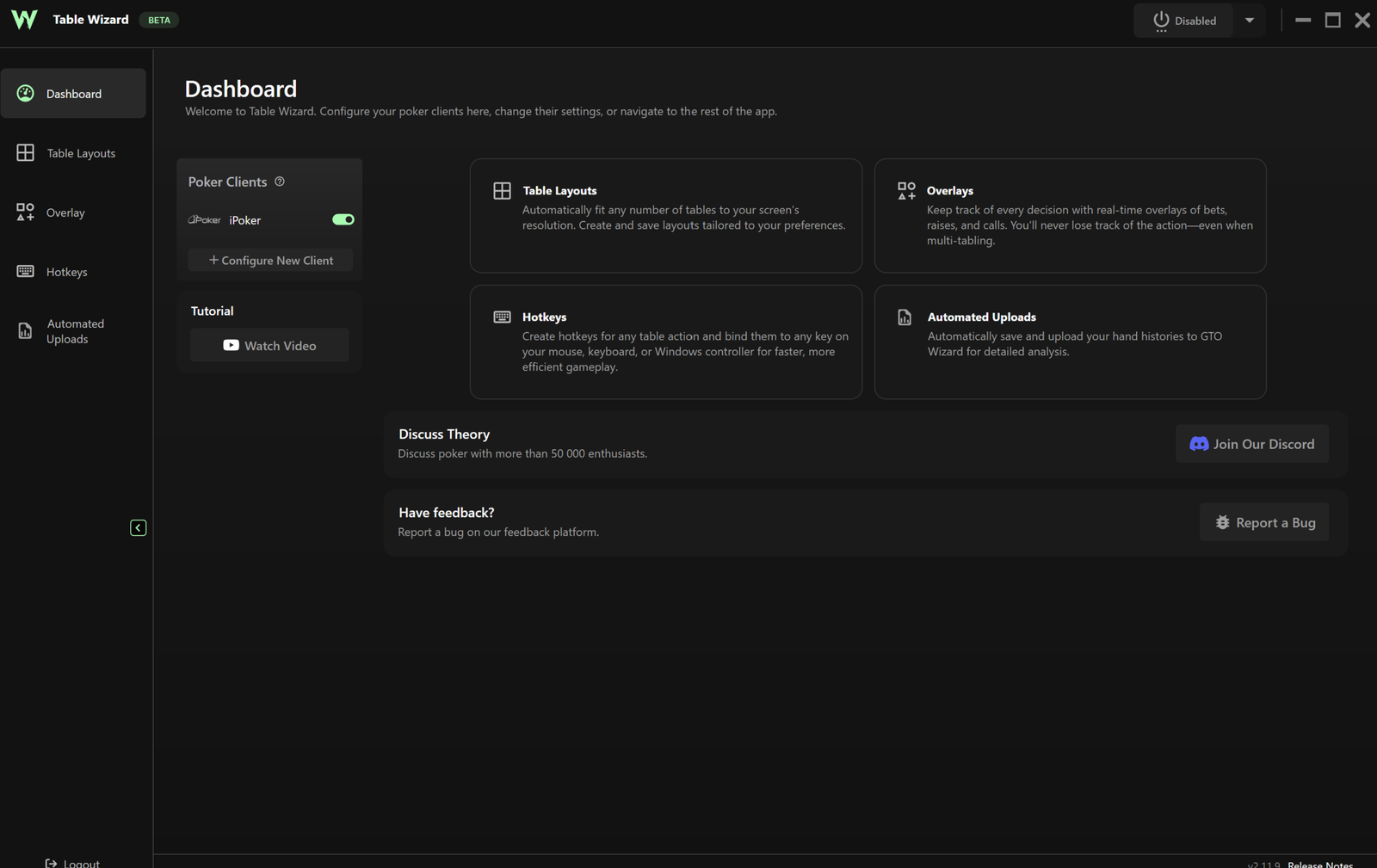
Table Wizard is designed for players who play online poker at multiple tables rather than just one. It belongs to the table management software category: it does not calculate strategy or suggest decisions but instead organizes your playing environment. Table windows are automatically arranged on the screen, bet sizes can be assigned to hotkeys, and figures that would normally need to be calculated mentally are displayed directly over the table. The software also offers something most similar tools do not: it automatically sends completed hands to a solver for review, so the analysis is ready by the end of the session.
Multi-tablers face the problems this software solves every day. Tables open and close in random order and overlap one another. Decisions must be made within seconds, while setting an exact bet size with a slider requires precise mouse movement. By the time you look back at the next table, it may no longer be clear what happened there. Finally, after the session, hand histories must be exported and uploaded to analysis software—a step many players simply skip.
What the Software Includes
Table Wizard runs on the same computer as the poker room client and works as an overlay on top of it. It does not interfere with gameplay: it does not read opponents’ cards, provide recommendations, or click buttons for the player. Everything it does can be divided into three areas.
The first is window management. The software detects which tables are open and arranges them on the screen according to a predefined layout.
The second is overlays: information panels displayed over the table window. They use data that is already visible at the table, such as stack sizes, the pot size, and previous actions. The software simply collects and recalculates this information before presenting it in a convenient format.
The third is hand history processing. The poker client saves text records of completed hands in a dedicated folder. Table Wizard retrieves new records from that folder and sends them to the GTO Wizard analyzer, where each hand is automatically compared with the solution produced by a solver—a program that calculates a mathematically optimal strategy.
This setup is important for understanding the software’s limits: all analysis takes place after the hand and on the GTO Wizard platform. At the tables, the software remains purely an informational and organizational tool.
Table Layouts
Table layouts are the main feature of any table manager and the primary reason to install one. Table Wizard offers two layout modes.
A static layout is a predefined grid. The software selects an option based on the screen resolution and number of tables, or you can create a grid manually by arranging the windows as you prefer and saving the setup as a template. You can create multiple templates, each configured for a particular scenario—for example, four Spin & Go tables in one row or six cash game tables in two rows.
A dynamic layout adjusts the grid on the fly. Whenever a table opens or closes, the remaining windows are automatically rearranged across the screen. This is more convenient than a fixed setup for tournament sessions, where the number of tables changes constantly: there is no need to move windows manually or prepare separate layouts for every possible number of tables.
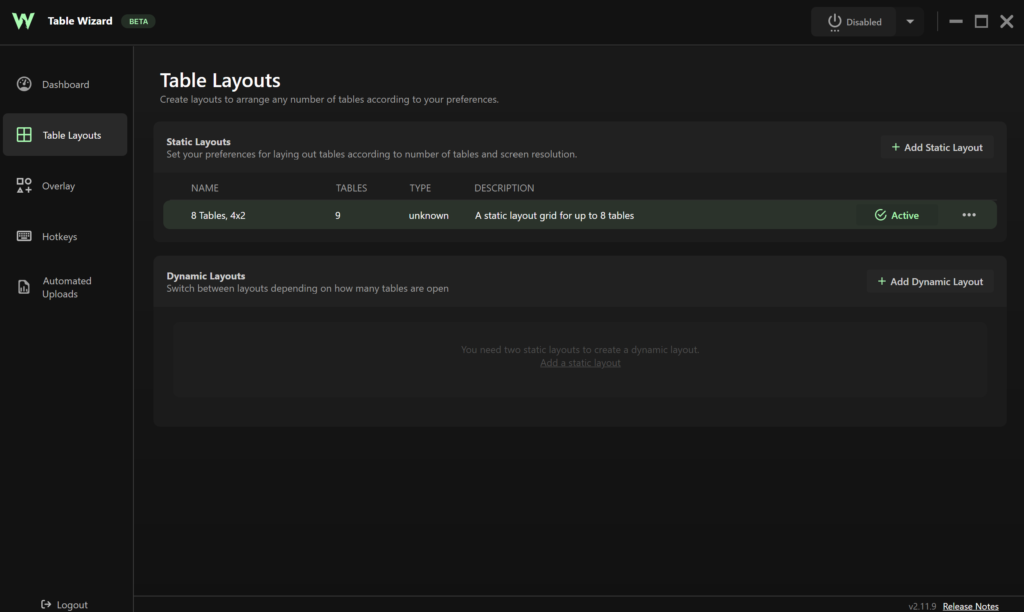
For beginners, this feature offers a simple benefit: the screen is no longer a jumble of overlapping windows. The difference may not be noticeable with two or three tables, but from around four tables onward, the time spent looking for the right window becomes a significant part of the session.
Information Panels Over the Table
An overlay is a small panel displayed over the table window. Table Wizard provides several such panels, each serving a different purpose.
Key ratios. The table information panel displays three figures. SPR (stack-to-pot ratio) is the ratio of the effective stack to the pot size; the lower it is, the closer the situation is to a simple “bet or fold” decision, with less room to maneuver. Pot odds show how much you need to call relative to the money already in the pot—in other words, the price of continuing in the hand. The effective stack is the smaller of the two players’ stacks, meaning the amount that can actually be put at risk in the hand. All three are calculated in real time, so there is no need to do mental math or use a calculator before making a decision.
Action history. A sequence of short notations displayed above the table shows what each player did on every street. Streets are separated by periods, while actions are represented by letters: X means check, C means call, R means raise followed by the size, B means bet followed by the size, and AI means all-in. This line lets you review the action in a hand within seconds. For example, an entry for a CO (cutoff) versus BB (big blind) pot might show the following: preflop, the CO opened to 2.3 big blinds and the BB called; on the flop, the BB checked, the CO bet 33% of the pot, the BB raised to 66%, and the CO called; both players checked the turn; and on the river, the BB bet 50% of the pot. There is no need to reconstruct the action from memory—which is often where players struggle after returning to a table following a decision in another window.
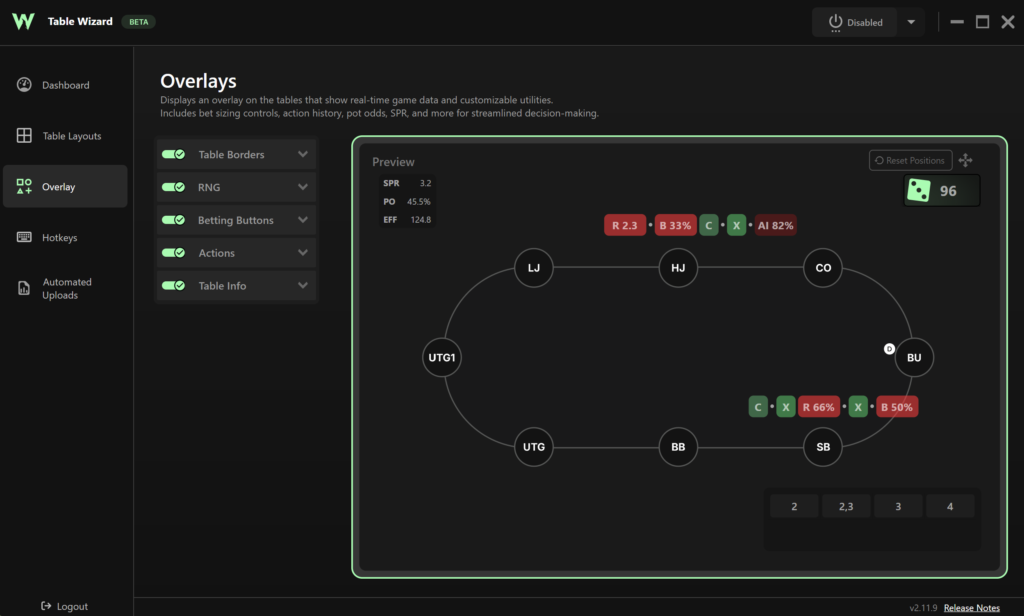
Table borders. A table waiting for a decision is highlighted with a colored border. With eight or more windows open, this is the only reliable way to avoid missing your turn.
Random number generator. The randomizer generates a number that determines which action to take when the optimal strategy uses a mixed frequency—for example, raising 30% of the time and calling 70%. Mixed strategies are a standard part of theoretically sound play, and they cannot be implemented accurately without an external source of randomness: players inevitably tend to default to one familiar option.
Bet buttons. Custom buttons can be configured with predefined sizes: big blinds preflop and percentages of the pot postflop. Instead of dragging a slider, you only need to click once.
Hotkeys
A hotkey is a key or key combination that performs an action at the table. In Table Wizard, hotkeys can be assigned to almost anything: folding, checking and calling, raising, going all-in, increasing or decreasing a bet by one big blind, choosing a specific bet size, or generating a random number.
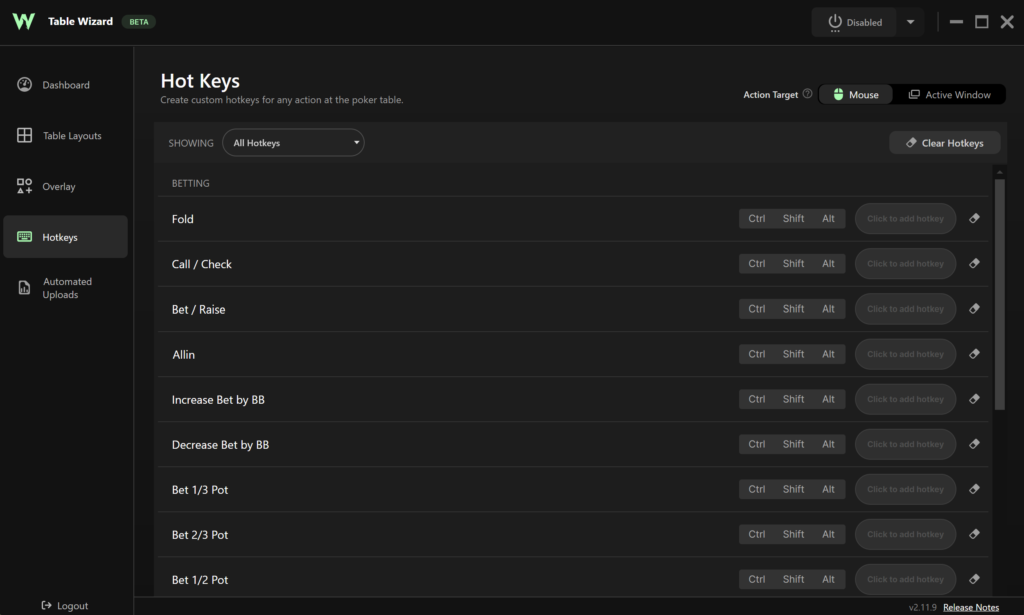
Hotkeys can be assigned to the keyboard, additional mouse buttons, or any gamepad supported by Windows. The last option is most commonly chosen by high-volume grinders: a gamepad setup makes it possible to control the action with one hand while keeping the other on the mouse.
The practical benefit is easy to quantify. With ten tables and several hundred decisions per session, saving one or two seconds on every action adds up to tens of minutes. More importantly, it prevents misclicks, which are particularly costly when using a bet slider.
Automatic Hand Analysis
This is the feature that sets Table Wizard apart from other table managers. Shortly after each hand ends, its history is sent to the GTO Wizard analyzer, and the reviewed hand is saved directly to the player’s account.
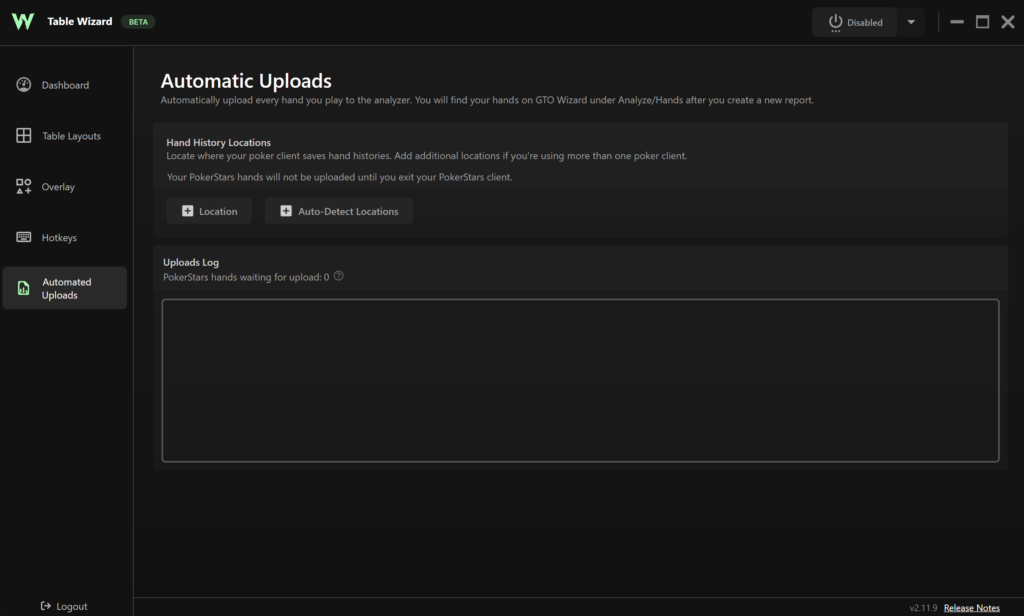
In practical terms, this provides the following benefits:
- Analysis without setup. There is no need to find the hand history folder, export files, and upload them manually. The hands are already there when the session ends.
- Instant spot review. You can open any hand and view the solver’s solution for that situation, including how the entire range and your specific hand should have been played.
- Identifying recurring mistakes. When hands are collected automatically, you can see patterns rather than isolated errors, including the positions and streets where you regularly lose equity.
For beginners, the main benefit is discipline. Session review is the easiest part of studying to postpone, and every manual step makes it less likely that the review will happen at all. Table Wizard removes that barrier entirely.
It is important to understand where Table Wizard’s role ends: the analysis itself takes place on the GTO Wizard platform and requires an account, while the depth of analysis depends on your subscription. A free account can receive hands, but the amount of automated analysis is limited.
Compatibility: Poker Rooms and Operating Systems
Table Wizard is available for Windows 10 and 11. A macOS version has been announced as being in development but was not available when this article was prepared. The software is distributed as a portable build: you download an archive from the official website and run it without an installer.
The list of supported poker sites is still short. At launch, Table Wizard supported PokerStars and rooms on the iPoker network; CoinPoker, Winamax, and rooms on the WPN network were added later. The developer says the list will continue to expand but has not provided a timeline for new sites. By comparison, trackers and table managers that have been available for many years support considerably more rooms, making compatibility Table Wizard’s main limitation at present.
Its status with poker rooms is also worth noting. Table Wizard is officially approved by every site it supports: it does not provide real-time strategic advice, and its features comply with the rules governing permitted software. There is no need to worry about an account being suspended simply for using the program, although it is still advisable to check the rules of the specific poker room before playing, as they can change.
Another limitation is that the software does not include a database of opponent statistics. It neither collects nor displays opponent stats and does not provide a HUD in the traditional sense. Everything shown on the screen relates to the current hand and the player’s own decisions.
Finally, the software remains in beta. Its features work, but some rough edges are still being addressed: the developer collects bug reports through the community and a public feedback board. Players with lower-end systems have occasionally reported that the overlays put a noticeable load on their computers.
Getting Started
Getting started involves a few straightforward steps.
- Download the archive from the software’s official page and extract it to any folder. No installer is required.
- Launch the software and log in to your GTO Wizard account, which is also required for automatic hand uploads. A free account is enough to get started.
- Open your poker room client and one table so the software can detect the window and identify the site.
- Create a layout: select dynamic mode or manually configure a grid for the number of tables you usually play, then save it as a template.
- Enable the overlays you need and configure your bet sizes—big blinds preflop and percentages of the pot postflop.
- Assign hotkeys to the main actions. It is best to begin with a minimal set: fold, call, raise, and two or three bet sizes.
It is not worth trying every feature at once. A more practical approach is to start with table layouts and borders, give yourself a couple of sessions to get used to them, and only then add hotkeys. Until the key combinations become automatic, they are more likely to slow down your play than speed it up.
Pricing
The software is free: all its features are available during the open beta, although the developer notes that certain undisclosed limitations apply. The only paid component is the related GTO Wizard subscription, which determines the depth of automatic hand analysis. A free account lets you upload hands with a limited amount of analysis, the entry-level paid plan increases this limit, and higher-tier plans unlock the full solution library. A detailed overview of plans and prices is available on the product page.
Conclusion
Table Wizard solves a narrow but significant problem: it removes everything from a session that gets in the way of thinking about the hand. Table layouts, hotkeys, and overlays with key ratios form a toolkit that makes playing noticeably easier from around four tables onward, while automatic hand submission makes reviewing your game virtually effortless.
The limitations are equally clear: Windows only, a short list of supported poker rooms, and beta status. If your preferred site is supported, the software is worth trying—it costs nothing and requires no commitment. The best approach is to learn it gradually: start with layouts, add overlays next, and only then configure hotkeys once you know which actions you want to keep within easy reach.

Featured software


Latest posts
-
 GGPoker Bans Third-Party Poker Software: Five New Security Measures Oct 18, 2026
 -
 PeakGTO Review: A GTO Trainer With an ELO Rating System From Jonathan Little’s Team Oct 16, 2026
 -
 GTOBase Review: Ready-Made GTO Solutions and Hand Analysis Oct 15, 2026
 -
 Simple Postflop Review: A GTO Solver for Heads-Up Pots from Preflop to River Oct 14, 2026
 -
 Simple Preflop Holdem Review: GTO Preflop Strategies for Any Table Oct 13, 2026
All the poker software you need, gathered in one place. Exclusive discounts, bonuses, latest news and updates.
Join now