StarsCaption Review: How to Automate Routine Tasks at the PokerStars Tables
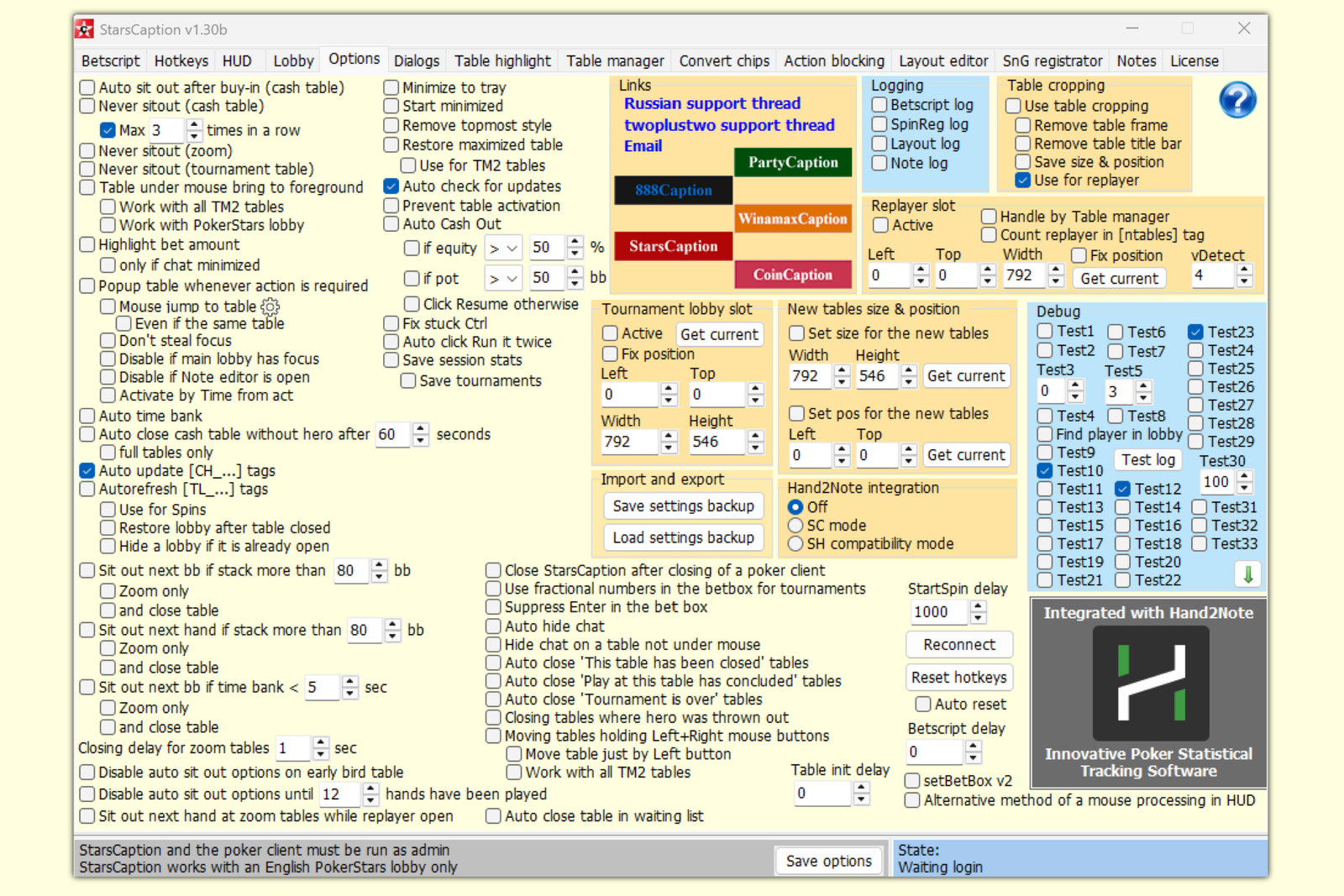
StarsCaption is an assistant tool for playing on PokerStars that adds hotkeys, preset bet sizes, automatic table arrangement, and tournament registration to the poker room’s standard interface. It does not analyze hands or calculate equity—separate tools such as trackers handle those tasks. Instead, it solves a more practical problem by eliminating dozens of small manual actions that add up over a playing session, especially when multitabling. Below, we take a step-by-step look at how the program works and what practical benefits it offers beginners who are just starting to play multiple tables.
What to Know Before Configuring the Program
StarsCaption runs on top of the PokerStars window. The program recognizes tables by their titles and interface elements, so the poker client must be set to English, and both StarsCaption and the client must be run as an administrator. The license is stored on the developer’s server rather than on your computer and is linked to your screen name. As soon as you log in to the client with your account, the program automatically verifies your license. The same license key can be linked to multiple screen names if you use different regional versions of PokerStars, such as PokerStars.com and PokerStars.eu.
The program is built around several related features. Hotkeys are keyboard keys or mouse buttons assigned to specific in-game actions. Betscript is a module that enters a preset bet size into the bet box, calculated using a formula or as a percentage of the pot. Table Manager distributes open tables among designated areas of the screen called slots, while the HUD—an information panel displayed over the table—shows figures that you would otherwise have to calculate mentally. Each of these features is explained in more detail below.
Hotkeys and Table-Zone Controls
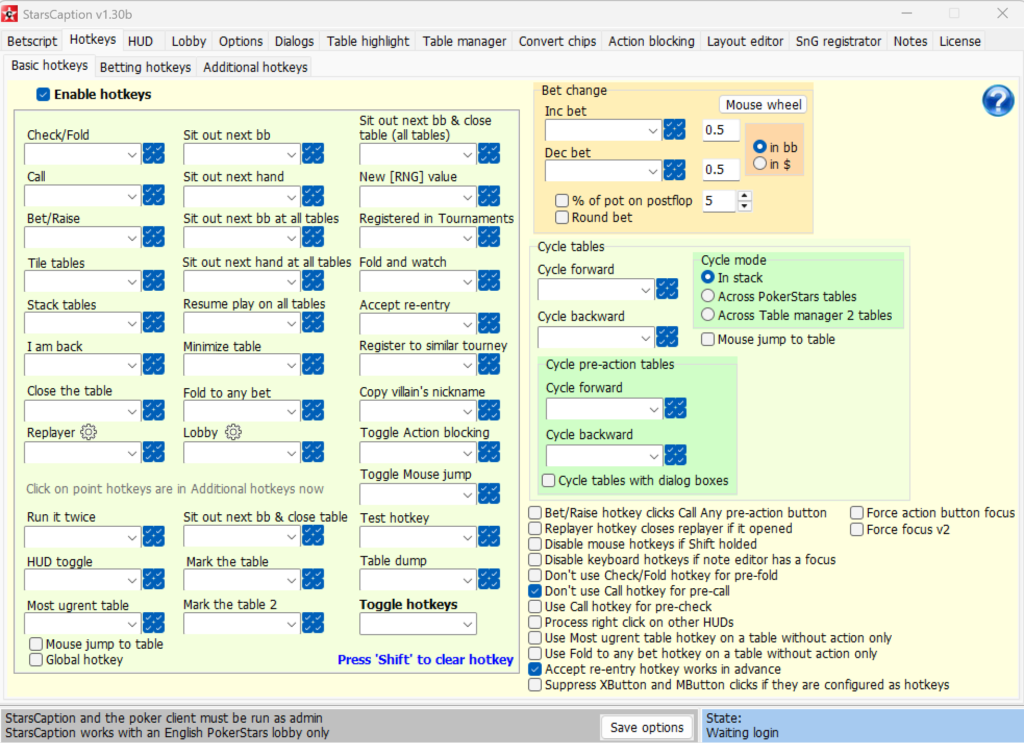
You can assign a keyboard key or mouse button to any action, including check, call, bet, raise, fold, sit out, and close table. One distinctive feature of StarsCaption is that it can divide a table into four zones. The same mouse button can then perform different actions depending on which part of the window the cursor is over when you click it. For example, clicking the mouse wheel in one table zone can set you to sit out after the current big blind, while doing so in another zone closes the table. This reduces the number of hotkeys you need and eliminates the need to memorize dozens of separate combinations.
Separate hotkeys control the bet size. You can use the mouse wheel or assigned keys to increase or decrease the amount in the bet box in increments measured in big blinds or the table currency. This is useful when you need to quickly adjust a preset bet size for a specific situation without entering the number manually.
Betscript: Preset Bet Sizes
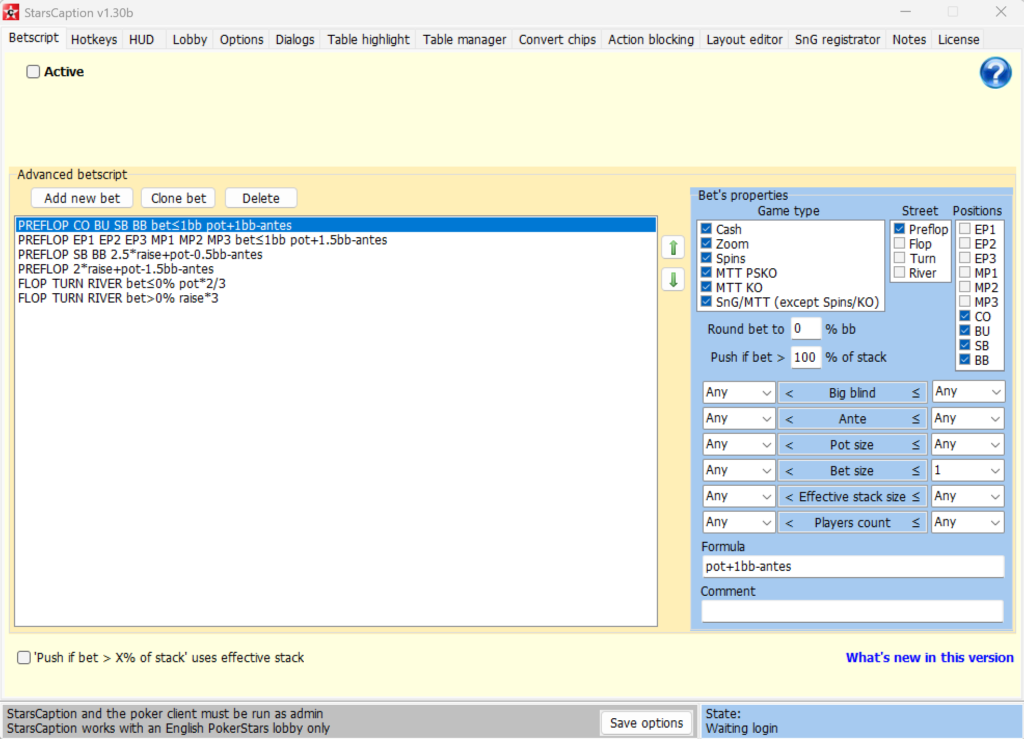
Betscript is a module that calculates the required amount in advance and enters it into the bet box when it is your turn to act. Bet sizes are defined using formulas—for example, as a percentage of the pot or effective stack—and can be configured separately for different situations, including opening raises, re-raises, and bets on different streets. When you press the corresponding hotkey or on-screen button, the program enters the calculated amount automatically, leaving you only to confirm the action. This saves a noticeable amount of time when multitabling at a fast pace, where even a couple of seconds spent calculating a bet at each table can add up to a significant delay.
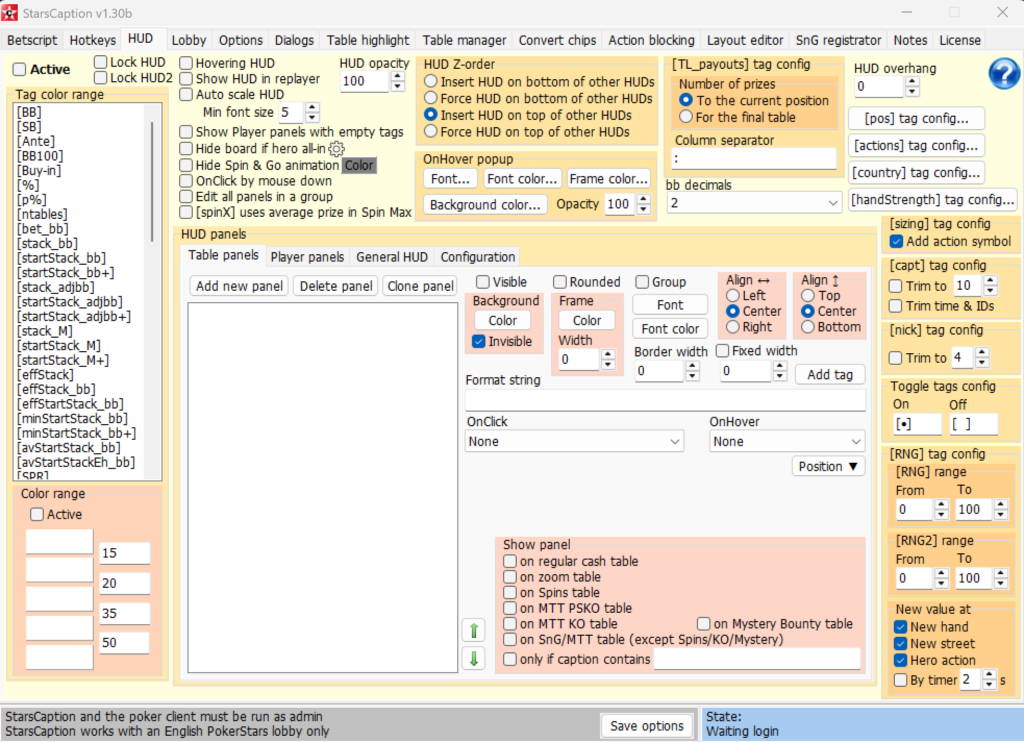
HUD With Real-Time Table Math
StarsCaption’s information panel displays data over the table that can help you make quick decisions, including stack size in big blinds, pot odds, push-or-fold odds in short-stacked tournament situations, stack-to-pot ratio (SPR), and other figures. Values are automatically color-coded according to the ranges they fall into, and the panel adjusts to the number of seats at the table.
It is important to understand that this HUD displays real-time table math rather than statistics based on your opponents’ actions. For the latter, StarsCaption integrates with Hand2Note, and both programs can run simultaneously. In this setup, Hand2Note provides hand histories and opponent statistics, while StarsCaption displays current pot odds and SPR.
Keeping Your Screen Organized With Table Manager
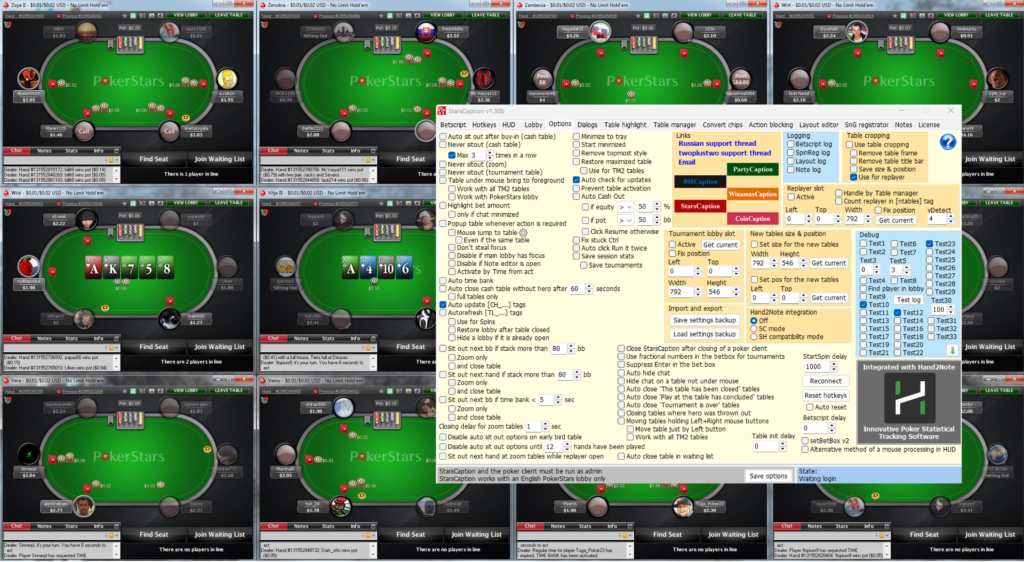
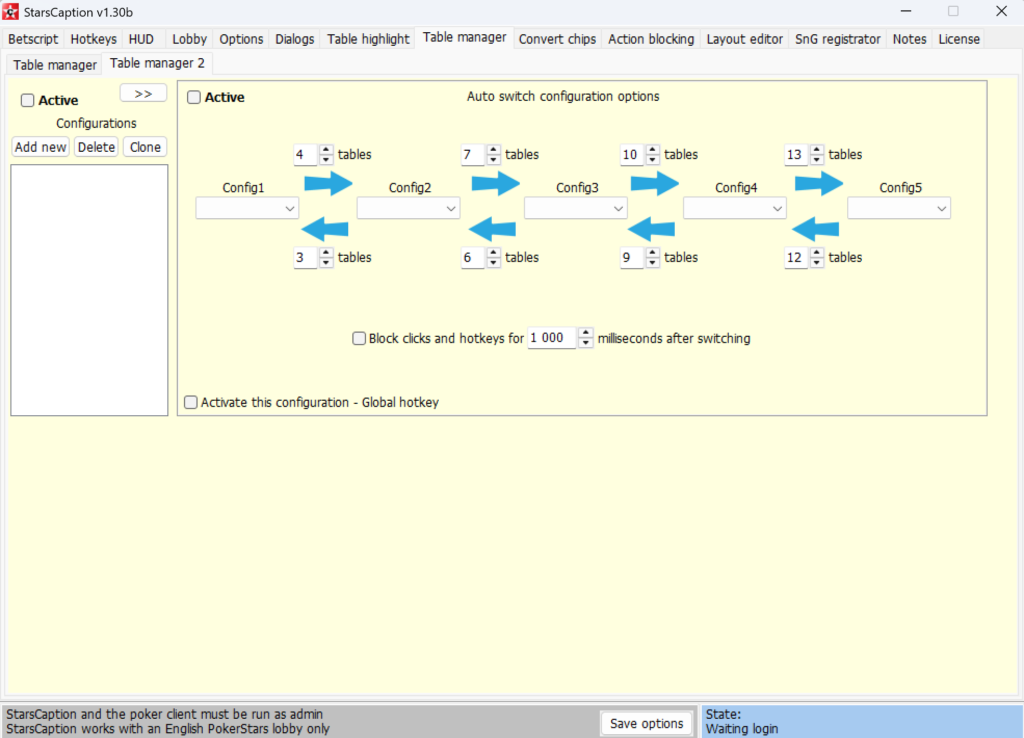
When you play multiple tables, the windows can quickly turn into a cluttered pile stacked on top of one another. Table Manager solves this problem by automatically distributing tables among predefined areas of the screen called slots, which can be combined into stacks. A table is brought to the top of its stack when it is your turn to act or when a hand ends. You can position slots manually to suit a specific monitor or automatically generate them as a grid. When one table closes, the others are redistributed accordingly.
The program distinguishes tables by their window titles and interface elements and comes with presets for several PokerStars interface formats, including the Aurora graphics engine. You can save multiple table layout configurations—for example, one for six simultaneous tables and another for twelve—and switch between them without rearranging everything manually.
Automatic SNG and Spin & Go Registration
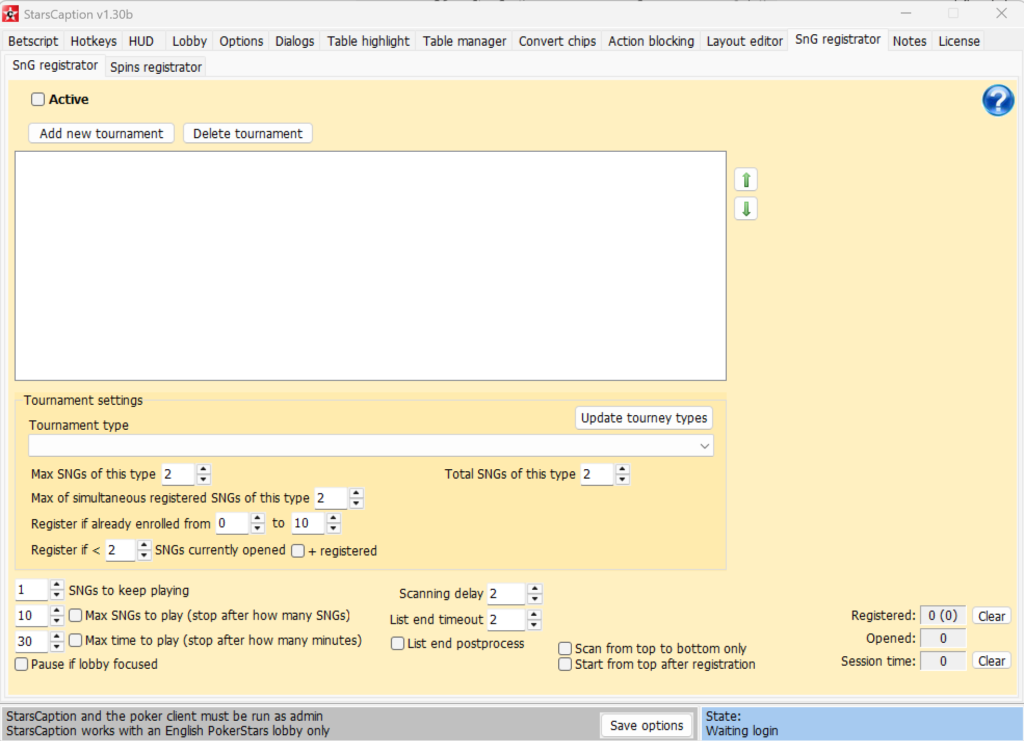
For players who focus on tournament formats, StarsCaption offers an SNG and Spin & Go registration tool. It automatically registers you for selected tournament types according to specified criteria, including how many tables to keep open simultaneously, how many players should already be registered before you join, and how frequently registrations should occur. For Spin & Go tournaments, you can set a fixed stake for registration or alternate between several stakes in sequence.
The registration tool requires the PokerStars lobby to remain visible and not minimized. It also requires the tournament list columns to be arranged in a specific order, so it is worth checking the instructions on the program’s official website before using it for the first time.
Dialog Box Automation and Other Conveniences
A number of less noticeable but useful features eliminate routine clicks. The program can automatically close pop-up windows about moving to another table, confirm tournament top-ups and add-ons, activate the time bank when needed, and prevent tables from switching to sit-out mode when this is not desired. You can also configure an automatic return to the table after a connection loss or break, while table window borders can be cropped to create a cleaner appearance in tightly packed layouts.
Compatibility: Formats and Poker Rooms
StarsCaption works with PokerStars.com, PokerStars.eu, and regional versions of the poker room, with all screen names linkable to a single license. The program supports cash games, multi-table tournaments, Sit & Go, and Spin & Go. In terms of client graphics, it is compatible with both the classic interface and the newer Aurora engine.
StarsCaption is available only for Windows, with no macOS version. The PokerStars client must be set to English so that the program can correctly recognize table interface elements. StarsCaption is also compatible with poker trackers such as Hand2Note, allowing you to use real-time table math from StarsCaption and opponent statistics from the tracker at the same time.
How to Get Started
Installation involves only a few steps. First, download the program from the official website and run both StarsCaption and the PokerStars client as an administrator; otherwise, the hotkeys may not work. Set the poker client’s interface language to English, and consider adding both StarsCaption and the client to your antivirus exclusions so that it does not block keyboard and mouse input interception.
After the first launch, the program automatically recognizes your screen name when you log in to the poker client and loads your license from the server. You then have two options: play free of charge with no time limit at NL10 and below or in tournaments with buy-ins of up to $3, or request a free 30-day trial through the License tab for access at any stakes. The server processes trial requests within a few hours. It is easier to learn the program gradually: start with the basic hotkeys and Table Manager settings, then move on to Betscript and the HUD once you are comfortable with the initial features.
Pricing
Outside the free micro-stakes mode and trial period, StarsCaption offers just one paid license. It costs $24, remains valid for one year, and each renewal adds another 365 days to the license term. The program does not offer separate plans with different feature sets: hotkeys, Betscript, the HUD, Table Manager, and the tournament registration tool are all included with the same license. A detailed description of the plans and prices is available on the product page.
Conclusion
StarsCaption handles routine tasks at the PokerStars tables, including selecting bet sizes, organizing tables on your screen, registering for tournaments, and dealing with minor confirmations that would otherwise need to be completed manually dozens of times per session. Beginners who are just starting to play multiple tables should consider beginning with the free micro-stakes version or the trial period, learning the basic hotkeys and Table Manager first, and then gradually adding Betscript and the HUD. This allows the program’s features to become part of your game one step at a time rather than all at once.

Featured software

Latest posts
-
 GGPoker Bans Third-Party Poker Software: Five New Security Measures Oct 18, 2026
 -
 Table Wizard Review: Table Organization and Automated Session Analysis Oct 17, 2026
 -
 PeakGTO Review: A GTO Trainer With an ELO Rating System From Jonathan Little’s Team Oct 16, 2026
 -
 GTOBase Review: Ready-Made GTO Solutions and Hand Analysis Oct 15, 2026
 -
 Simple Postflop Review: A GTO Solver for Heads-Up Pots from Preflop to River Oct 14, 2026
All the poker software you need, gathered in one place. Exclusive discounts, bonuses, latest news and updates.
Join now